
Why Re-Engagement Campaigns Protect Your Business
A growing list of unengaged contacts creates a silent risk to your email deliverability. When a significant portion of your audience stops opening your emails, inbox providers like Gmail and Outlook interpret that as a signal that your content is irrelevant or unwanted — and they begin routing your emails to the spam folder, including for contacts who do want to hear from you. Re-engagement campaigns give unengaged contacts a clear choice: re-subscribe and stay connected, or be removed from your list. Either outcome improves your sender reputation and protects the inbox placement of your future campaigns.
This article is the second step in the re-engagement process. Before sending a re-engagement broadcast, you must first tag your unengaged contacts. See how to tag unengaged contacts for a re-engagement campaign to complete that step first.
The 18-Month Unengaged Contact Rule
When a contact has not engaged with any of your emails for 18 consecutive months, Keap automatically marks that contact as Non-Marketable. Once a contact is marked Non-Marketable due to 18 months of inactivity, emails cannot be delivered to them. There is no manual way to mark a Non-Marketable contact as engaged or to force Keap to send to them. The only way to give a contact the opportunity to re-engage is to send a re-engagement email before they reach the 18-month threshold. This is why running regular re-engagement campaigns is important — waiting until a contact is already Non-Marketable means they cannot receive the re-engagement email at all.
How to Send a Re-Engagement Email Broadcast
Step 1: Open Email Broadcasts
The location of Email Broadcasts depends on your account type.
- If you are on the Pro or Max plan: Click Marketing in the left-hand navigation, then click Email broadcasts.
- If you are on the Classic plan: Click Marketing in the left-hand navigation, then click Email & Broadcasts.
Step 2: Create a New Email Broadcast
On the Email Broadcasts page, click Create email broadcast to begin setting up a new broadcast.

The Email Broadcasts page displays the Create email broadcast button at the top of the page. Clicking the button opens the broadcast setup flow.
Step 3: Select the Sender
In the broadcast setup, select who the email will be sent from in the Sender field. The sender name and email address you select will appear in the From field when the contact receives the email.
The Sender field displays a drop-down for selecting the sender name and email address. Select the sender that represents your business to the contacts receiving the re-engagement email.
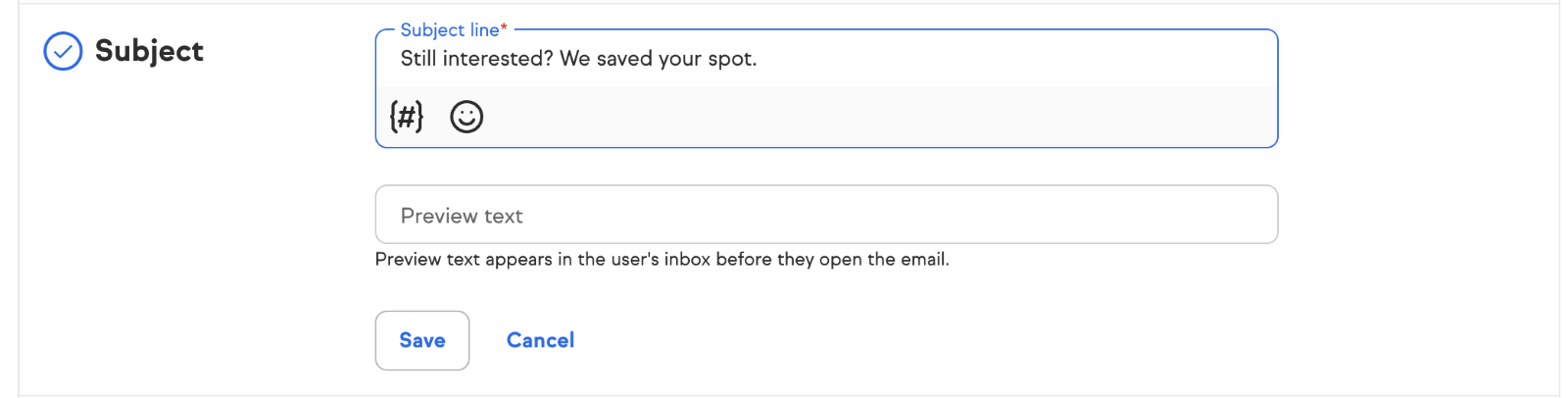
Step 4: Add a Subject Line
Enter the subject line for your re-engagement email in the Subject line field. See the Re-Engagement Email Template Examples section below for subject line ideas.
Step 5: Select Your Audience
In the Audience section, click in the audience search field and search for the tag you applied to your unengaged contacts in the previous step. Select the tag to add those contacts as the audience for this broadcast. Only contacts with that tag will receive the re-engagement email.
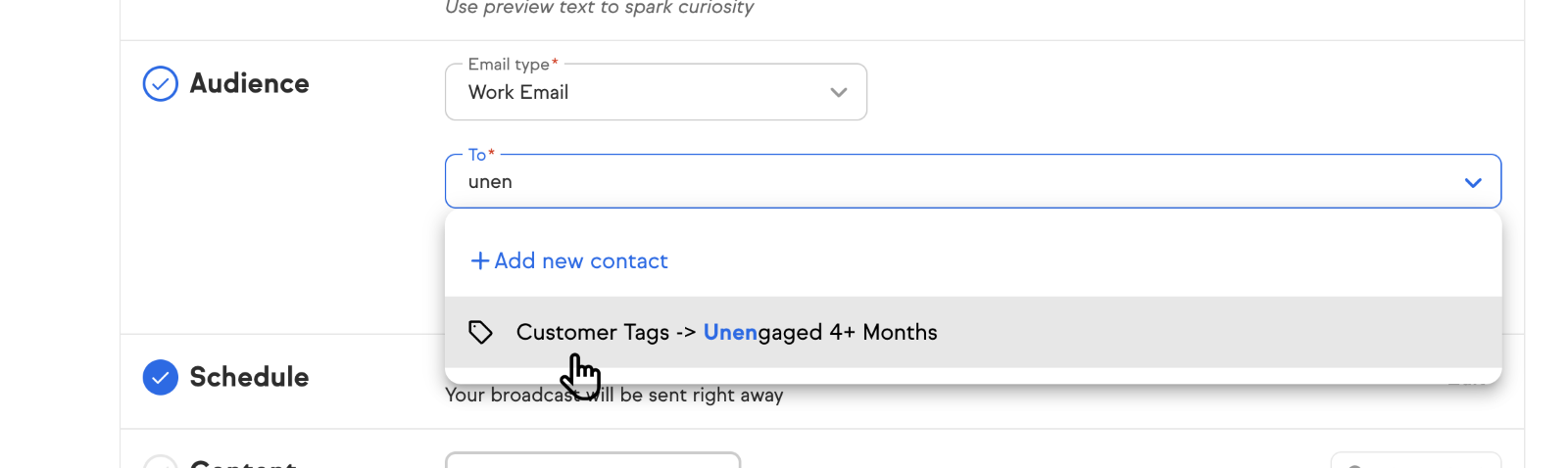
The audience field displays the selected tag as a filter. Only contacts who have the selected unengaged tag applied to their contact record will be included in this broadcast.
Step 6: Write Your Re-Engagement Email
Write an email asking the contact if they are still interested in hearing from your business. Let them know they will be opted out of future emails unless they choose to stay subscribed. Include a clickable link in the email body — the link click is how you will identify contacts who want to stay engaged.
To add the clickable link: highlight the text you want to turn into a link, click the Link option in the email editor toolbar, and enter the URL you want the contact to visit. When a contact clicks the link, configure the automation to apply a Re-engaged Contact tag to that contact's record. This tag is what separates the contacts who re-engaged from those who did not.
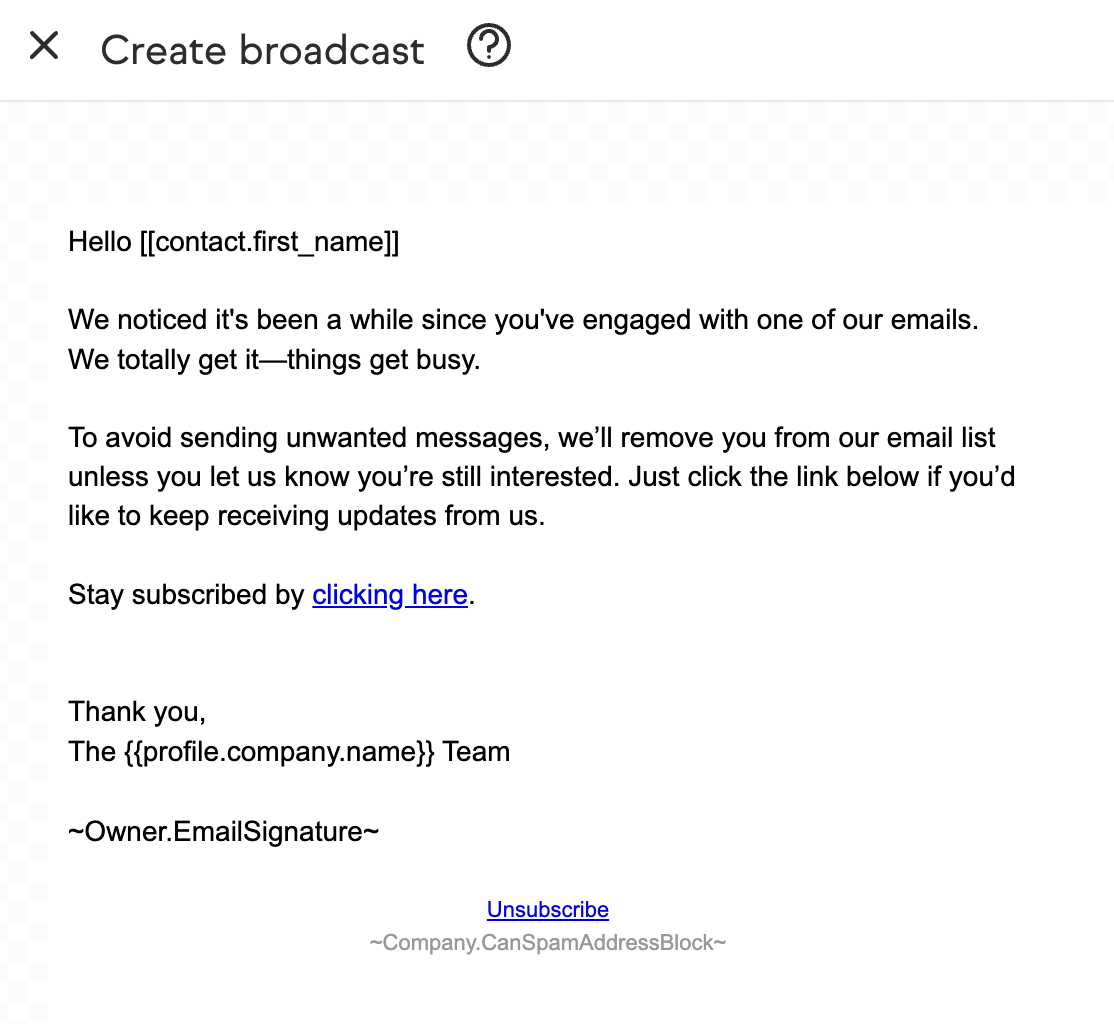
The email editor displays the re-engagement email body with a text link highlighted. The link configuration panel shows the URL field and the tag-on-click option. Setting a tag to apply when the link is clicked allows you to automatically identify and segment contacts who re-engage.
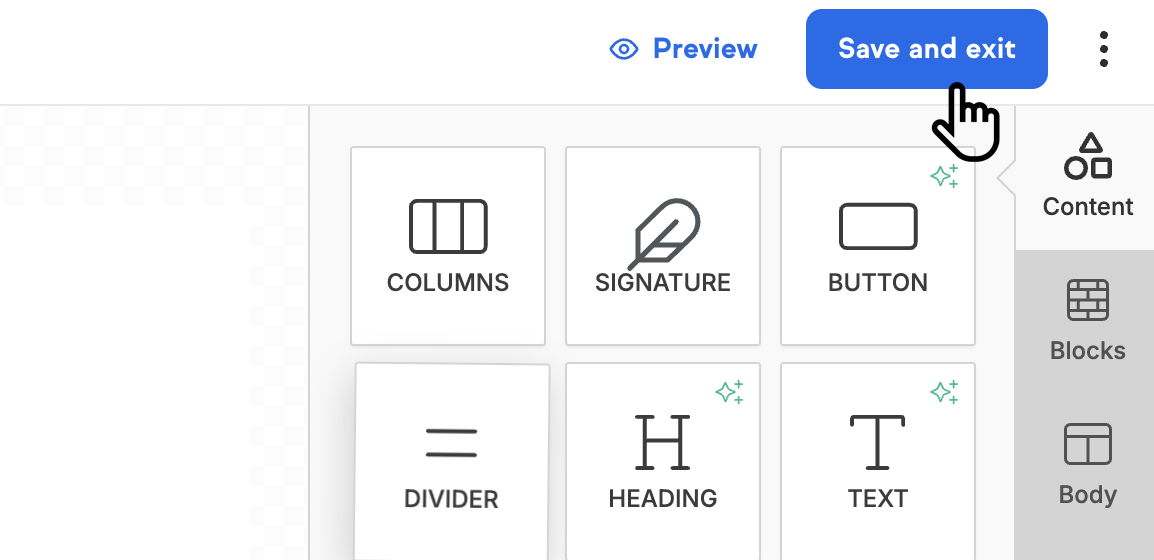
Step 7: Save and Exit the Email Editor
After writing your email, click Save and exit to return to the broadcast setup and continue to the send step.
Step 8: Send the Broadcast
On the final broadcast setup screen, review your sender, subject line, audience, and email content. When everything is correct, click Send to deliver the re-engagement email to your tagged unengaged contacts.

The final broadcast setup screen displays a summary of the broadcast configuration and the Send button at the top right. Clicking Send delivers the re-engagement email to every contact in the selected audience.
Re-Engagement Email Template Examples
The templates below provide starting points for five common re-engagement approaches. Each template is designed for a different business goal. Choose the approach that best fits your brand voice and the reason your contacts may have gone quiet. Customize the subject line, body, and call to action before sending.
Template 1: The "We Miss You" Email
Subject line options:
- "Hey [Name], remember us? We miss you!"
- "We miss having you around, [Name]!"
Body: We've noticed it's been a while since you last engaged with us, and we just wanted to check in. We value your time and would love to reconnect. Is there anything we can help with?
Call to action:
- "Click here to visit our website"
Template 2: The Personalized Offer Email
Subject line options:
- "A little something to say we miss you, [Name]"
- "Special offer just for you, [Name]"
Body: We've missed having you with us, so here's something special — just for you. Come back and enjoy [insert offer or discount].
Call to action:
- "Redeem your offer here"
- "Start shopping now"
Template 3: The Feedback and Improvement Email
Subject line options:
- "Help us improve! We value your opinion, [Name]"
- "We're listening, [Name]!"
Body: Your feedback helps us do better. We'd love to hear how we can improve your experience.
Call to action:
- "Take our short survey"
- "Reply with your thoughts"
Template 4: The New Product or Service Announcement
Subject line options:
- "Exciting news for you, [Name]!"
- "New [Product/Service] alert — check it out!"
Body: We've launched something new and think you'll love it. Take a look at what's fresh from [Your Brand].
Call to action:
- "Learn more here"
- "Try it out today!"
Template 5: The Social Proof Email
Subject line options:
- "See what others are saying about us, [Name]!"
- "[Name], hear from our happy customers!"
Body: Don't just take our word for it — here's what others are saying about [Product/Service]: "[Insert customer quote or testimonial]."
Call to action:
- "Read more testimonials"
- "Explore our success stories"
Key Elements of a Successful Re-Engagement Email
- Personalization — Use the recipient's name and, where possible, reference their past behavior, purchase history, or preferences.
- Clear call to action — Tell recipients exactly what you want them to do, such as clicking a button, completing a survey, or visiting your site.
- Compelling subject line — Grab attention and clearly communicate the intent of the email.
- Concise, engaging content — Keep the message focused, benefit-driven, and easy to read.
- Incentives (optional) — Consider including a discount, free shipping, or bonus offer to motivate action.
- Segmentation — Tailor your message to different groups of inactive contacts based on product interest or inactivity duration.
- Testing — A/B test subject lines, content, send times, and offers to optimize performance over time.
What to Do If Contacts Do Not Re-Engage
If contacts do not re-engage after receiving your re-engagement series, remove or suppress them from your active email list. Continuing to send to contacts who repeatedly do not engage will damage your sender reputation and reduce inbox placement for contacts who do want to receive your emails. A smaller, engaged list consistently outperforms a large, unengaged one.
Need Additional Help with Email Deliverability?
If you would like professional guidance on email practices or tools to improve your email deliverability, the following trusted partners offer specialized services.
Email Deliverability Training, Consulting, and Software
List Cleaning
- SpamClean — email list cleaning service
- ListDefender — email list cleaning and form security
- Klean13 — email list cleaning service
Form Security
Comments
0 comments
Please sign in to leave a comment.