
You can use the import tool to mass update a list of contacts. For example, you may need to add different country information to all of your existing contacts.
You can export a list, add each person's country information to it, and then import it back into Keap to update your existing contact list. The Keap Contact ID must be included in the export and the updated import file.
WARNING! The new information will permanently overwrite existing information in the updated field(s). The only exception is the Contact Notes field; this field can only be appended to. Updates performed through the Import tool cannot be reversed. Make sure you preview the field matching before you complete the import. This will not delete/remove tags. |
Important things to know
- You can NOT use a Modify Existing Records to delete information. Empty fields will be skipped
- You can NOT overwrite the Lead Source field using Modify Existing Records.
- Never match fields to the "Your Systems Contact ID"
How to Import Contacts via CSV
- Go to Admin > Data Cleanup in the main navigation menu.
- Select the data type and click on Go.
- Click on Browse to select a csv file from your computer.
- If you previously imported a similar file and chose to "Save the Import", you can choose this option and it will load the same field matching rules so you don't have to match the fields a second time. This can save you a lot of time if you are frequently importing csv files from other systems. A "Saved Import" is just a saved set of matching rules from a previous import.
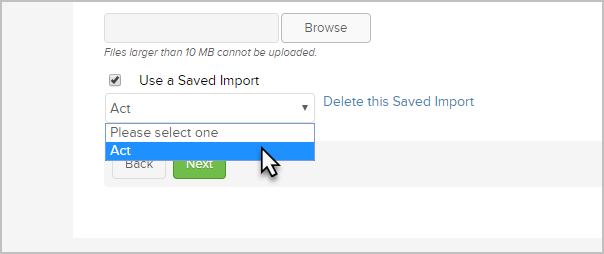
- Click on Next to start the import wizard.
Match the fields. The field name from your spreadsheet is on the left column. The Keap field name is on the right. Select the matching Keap field from each drop-down. If a matching field is not listed, you can create a custom field or select Do not Import this field to omit the field from the import.
(Optional) Match field values for the multi-choice fields (e.g. drop-downs or select lists). Select a matching Keap field from each drop down. If you need to populate multiple Keap fields with data from one spreadsheet, click on the Additional Field Matching Options link at the bottom of the page.
- Click Next when you have finished mapping your fields.
|
My Import to Update Existing Records Isn't Making Changes
If you ran a CSV import using the "Update existing records" option and your contacts don't appear to have changed, check the following before re-importing:
First, confirm your CSV includes a column that matches a unique identifier Keap can use to locate the existing record, typically Email Address. If the email in your CSV does not exactly match the email on the contact record (including capitalization and spacing), Keap will not find the record to update it and will skip that row silently.
Second, verify the field mapping step during import. If the column you want to update was not mapped to a Keap field, that column is ignored. Return to CRM → Contacts → Import and re-run the import, checking each column mapping on the confirmation screen before submitting.
If both of the above look correct and records are still not updating, contact support and reference your import job. Agents can pull the import log to identify which rows were skipped and why.
My Contact Import Is Failing with a Character Encoding Error
If your import fails with an error referencing "utf8mb3," "invalid character string," or similar encoding language, your CSV file contains a special character that Keap's importer cannot read. This is most commonly caused by:
- Smart quotes or curly apostrophes — copy-pasted text from Word, Google Docs, or a website often contains typographic characters that are not standard UTF-8
- Em dashes or special symbols — characters like
—,™,©, or®in a field value - Invisible characters — some copy-paste operations introduce hidden formatting characters that are not visible in Excel or Google Sheets
To fix this, open your CSV in a plain text editor (Notepad on Windows, TextEdit in plain text mode on Mac) and look for any unusual characters in the row the error references. Replace smart quotes with straight quotes, remove symbols, and re-save the file as CSV UTF-8 encoding before re-importing. In Excel, use Save As → CSV UTF-8 (Comma delimited) specifically — the default CSV format can reintroduce encoding issues.
Comments
0 comments
Please sign in to leave a comment.